RUMvision MCP in Claude
Connect RUMvision to Claude to ask questions about the performance your visitors actually experience. Claude can use the RUMvision MCP to retrieve your RUM and Core Web Vitals data and help you investigate issues.
Enabled MCP access in RUMvision before going through these steps. Read our introduction if you're new to MCP.
Requirements
To use the RUMvision MCP in Claude, you need:
| Requirement | Why it matters |
|---|---|
| A Claude plan with custom MCP app support | Claude must support custom MCP apps or connectors. |
| Access to developer mode | Developer mode is used to add and test custom MCP apps. |
| A RUMvision MCP endpoint | This is the URL Claude connects to. |
| HTTPS | Claude expects a secure HTTPS endpoint. |
| Authentication, if enabled | Some MCPs require users to sign in before data can be queried. |
Before you start
According to Claude’s custom connector guide, custom remote connectors are available on Free, Pro, Max, Team and Enterprise plans. Free accounts can add one custom connector. On Team and Enterprise, an Owner or Primary Owner must add the connector to the organization first. Each user then connects their own RUMvision account.
Connect RUMvision to Claude
These steps follow Claude's personal account interface. Button names may differ slightly between the web and desktop apps.
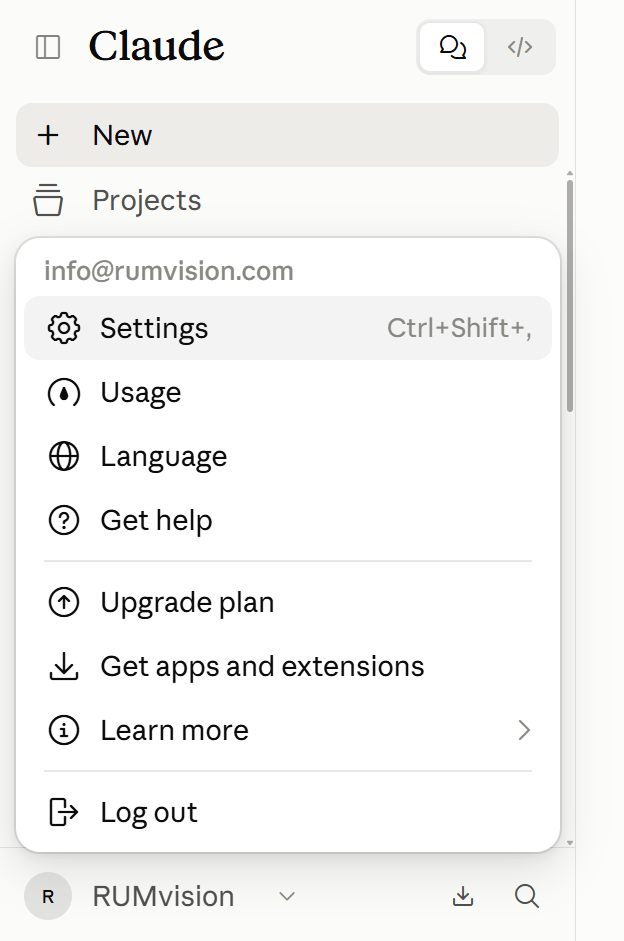
Step 1: Open Connectors
Sign in to Claude. Open the profile menu at the bottom left, choose Settings, then select Connectors under Customize.
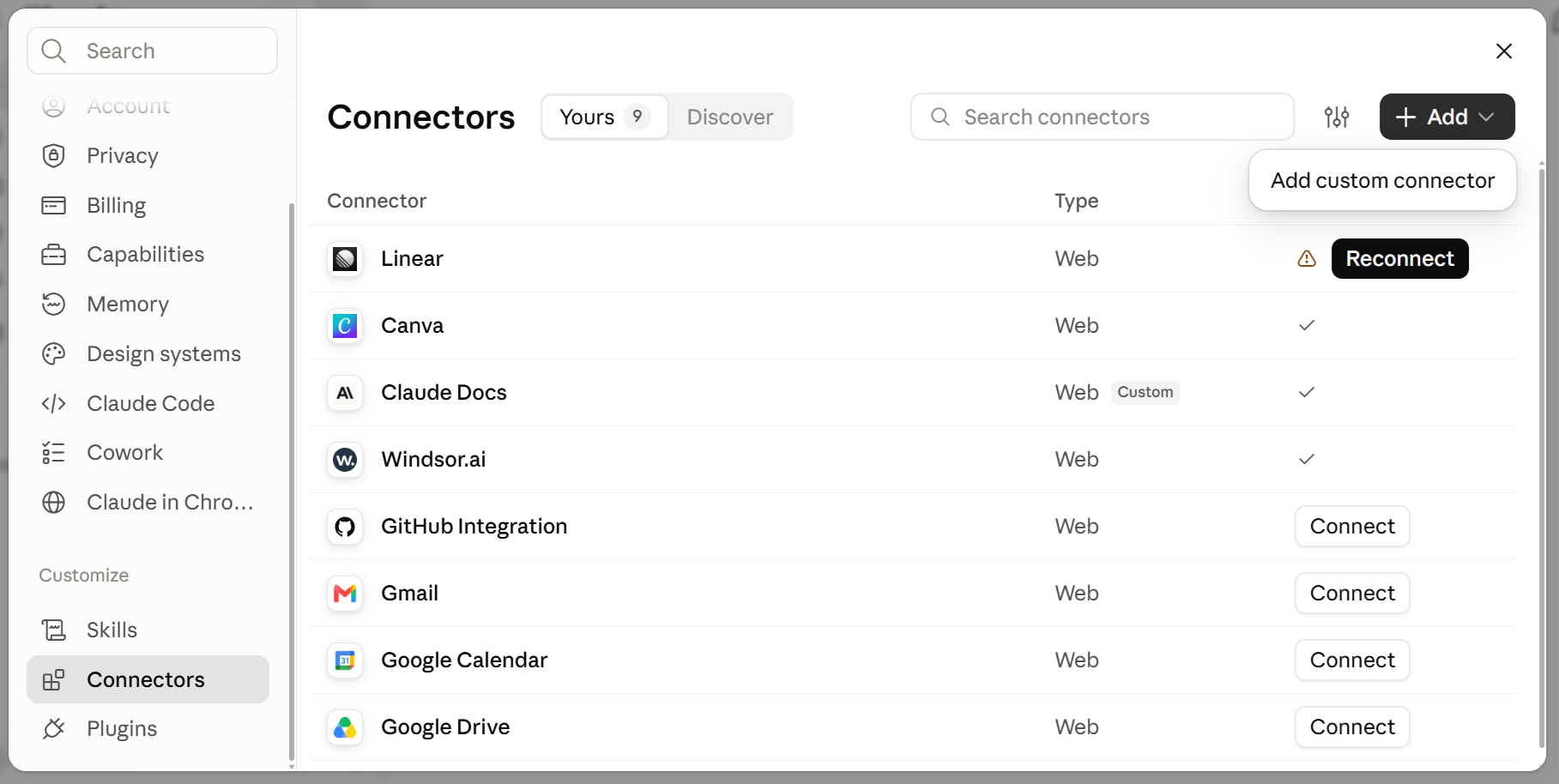
Step 2: Add a custom connector
Click + Add in the top right and choose Add custom connector.
A form will appear where you can enter RUMvision MCP as the name and our MCP endpoint as the URL.
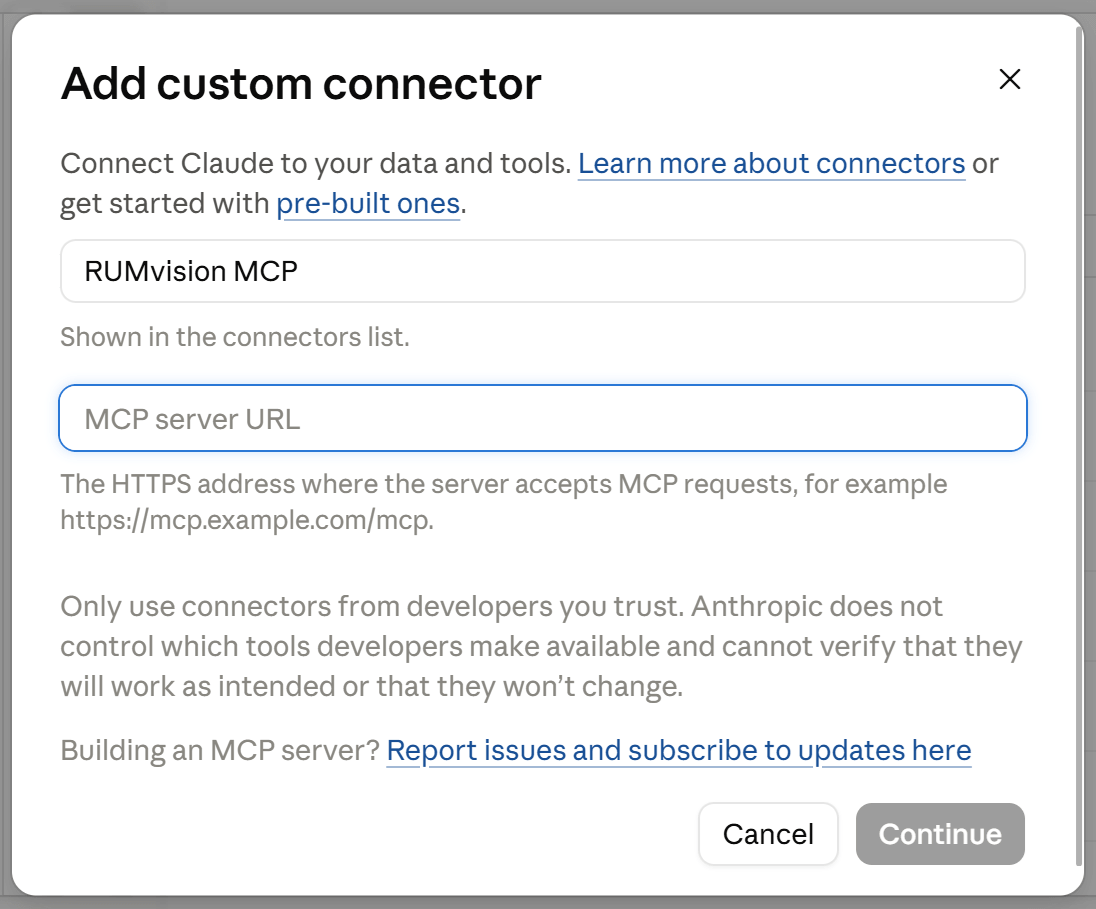
Once filled in, click the "Continue" button.
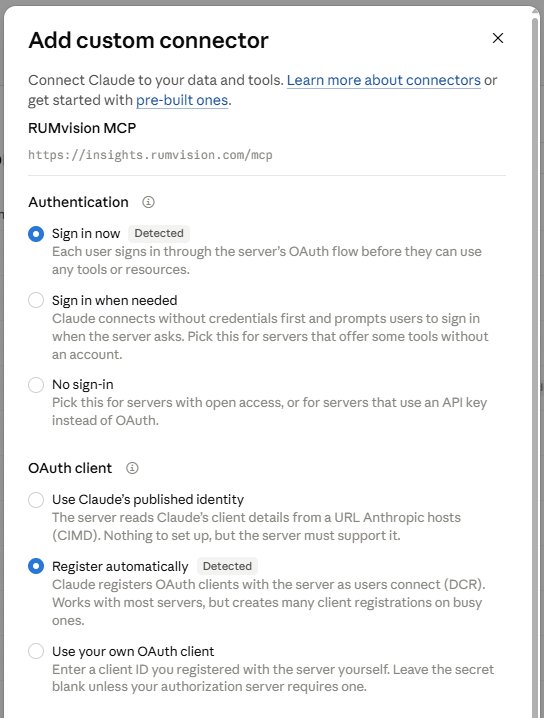
In the screen that appears next, the following should be auto-selected:
- Sign in now under Authentication
- and Register automatically under OAuth client.
Claude should have already marked these options as Detected. If note, set them to the above values.
Then, click Add to save the connector. You do not need to enter your own OAuth client ID or secret for this setup.
Team or Enterprise? Ask an Owner or Primary Owner to add the URL under Organization settings → Connectors → Add → Custom → Web. Once it is available in your organization, go to Customize → Connectors and connect your own account.
Step 3: Connect your RUMvision account
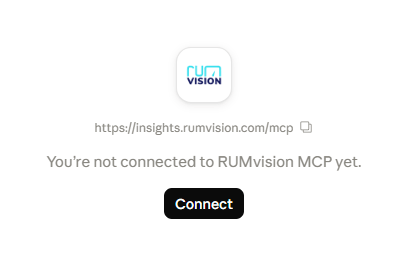
You will be prompted with a RUMvision MCP connector screen. Click the Connect button. Claude will send you to RUMvision to sign in or confirm the account you are already using.
Step 4: Review and authorize access
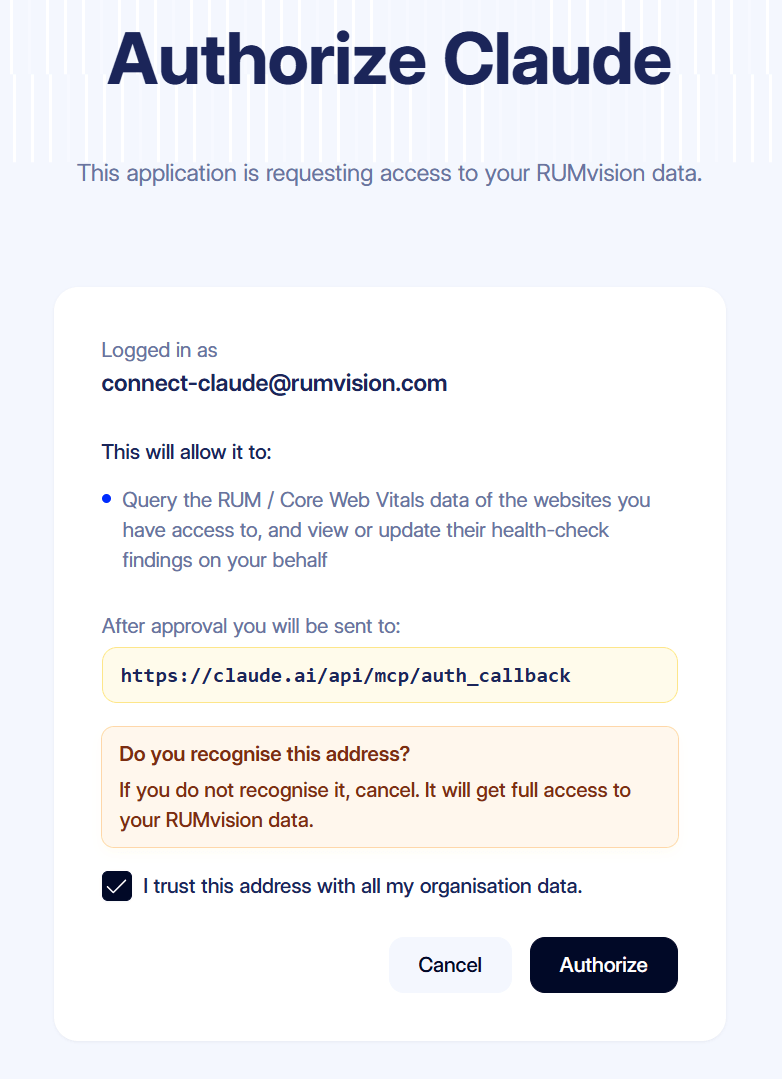
On the RUMvision authorization page, check which account is signed in and which access Claude is requesting. The screen shown here allows Claude to query RUM and Core Web Vitals data for websites you can access, and to view or update their health-check findings on your behalf.
Check the return address before continuing. In the example, it is https://claude.ai/api/mcp/auth_callback. If you recognize the request and want to grant this access, select I trust this address with all my organisation data and click Authorize.
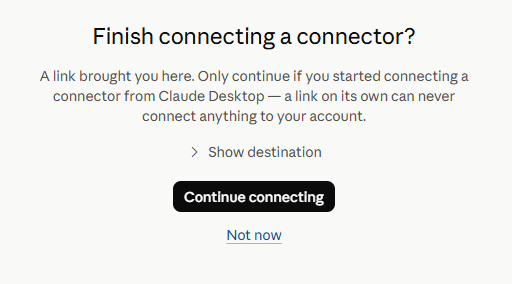
If Claude Desktop shows Finish connecting a connector?, click Continue connecting when you initiated the connection yourself. You will then return to Claude.
Use RUMvision in a conversation
In a Claude conversation, click the + button next to the message box, open Connectors, and enable RUMvision MCP for that conversation. You can then ask Claude to use the connector. For example:
Use the RUMvision MCP to show the Core Web Vitals for example.com over the last 28 days. Which pages have the largest LCP issues on mobile, and what should we investigate first?
You can also ask Claude to compare periods or examine a health-check finding. Check that the connector is enabled and that you have access to the relevant website if Claude cannot find the data. Claude documents the per-conversation connector switch under the + → Connectors menu.
Manage or disconnect the connection
Return to Settings → Connectors to review or disconnect RUMvision MCP.
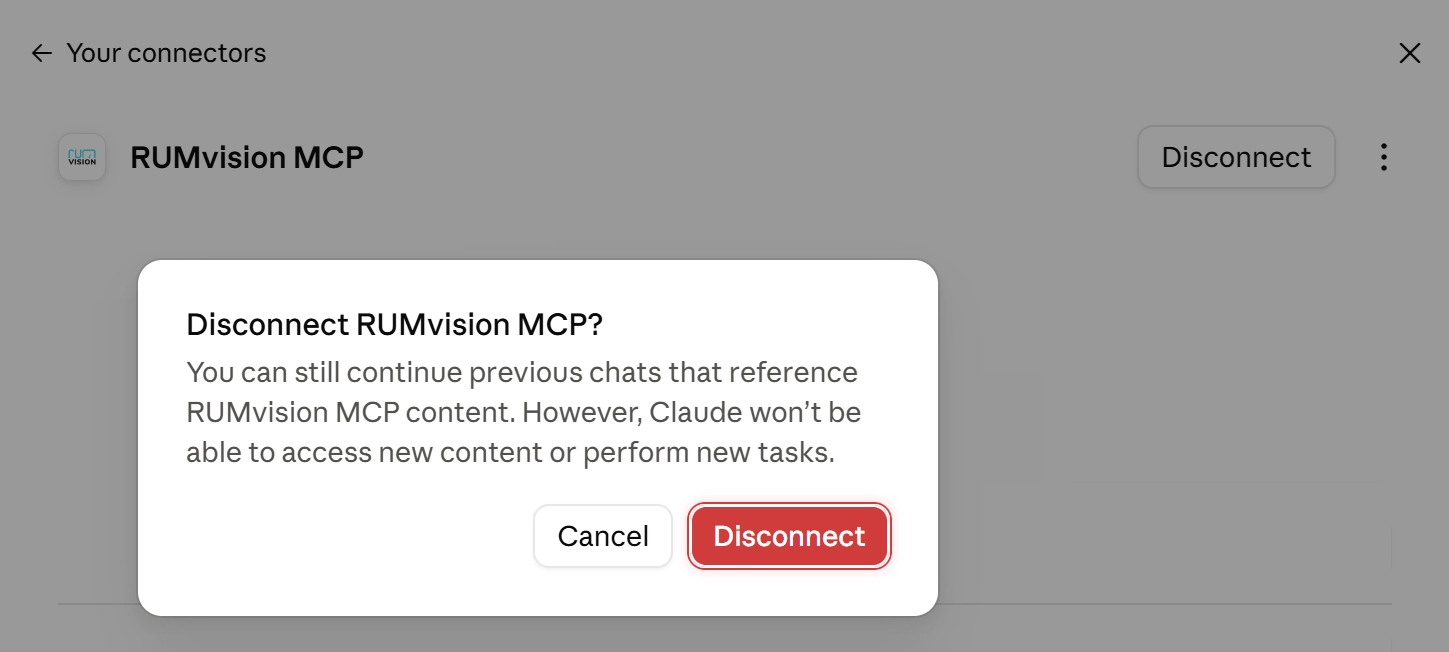
You can disable it for an individual conversation using the + → Connectors menu.
To revoke access from within RUMvision or for other MCP clients as well, see Revoke connections.
When adding any custom connector, verify its server URL and the permissions shown during authorization. Claude's custom connectors may come from services outside Anthropic's reviewed directory.
