Managing API keys
API keys allow you to connect external tools and services to RUMvision without using a personal user account.
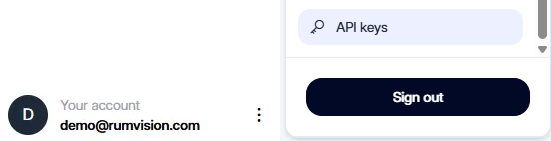
With the right access, API keys are managed at organisation level. If accessible to your account, you can also find a hyperlink via the user profile dropdown when logged in:
From the API keys page, you can create new keys and manage existing ones for your organisation.
Create an API key
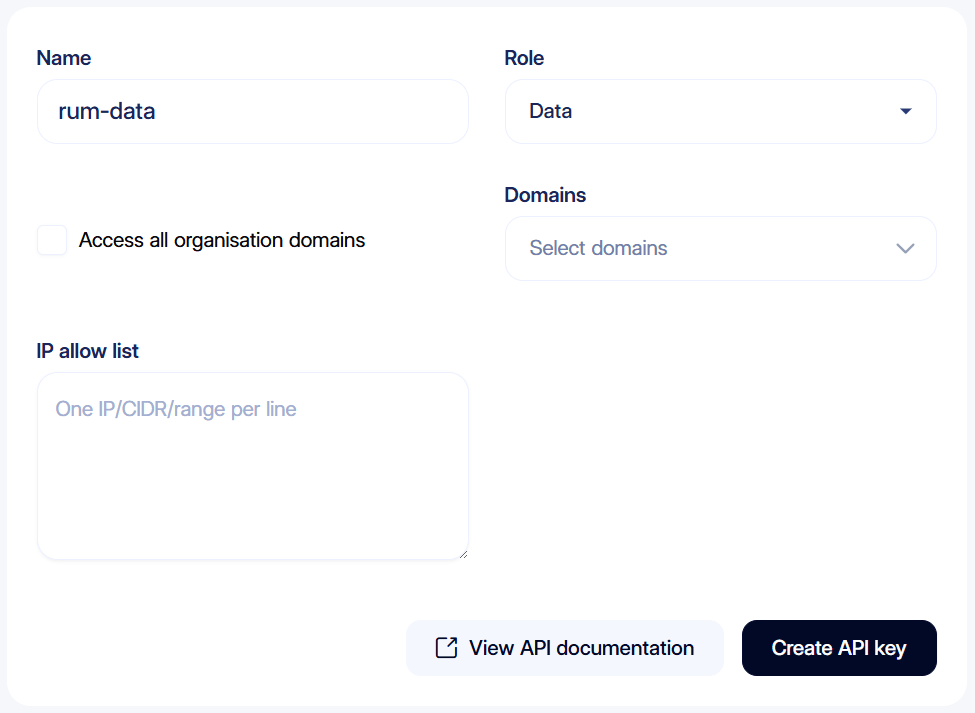
Click Create API key to create a new key. Give the API key a recognizable name, then choose the access it should have. You can also determine which domains within your organisation the key can access.
Using descriptive names can make API keys easier to manage later, especially when you use separate keys for integrations, scripts or automated processes.
Control domain access
An API key can be given access to all domains in your organisation or only to selected domains.
This allows you to limit a key to the domains needed for a specific integration or workflow instead of giving it access to your entire organisation.
You can update this access later by editing the API key.
IP allow list
You can restrict an API key so it can only be used from specific IP addresses or networks. When an IP allow list is configured, API requests from addresses outside the list will be denied.
Add one IP address, CIDR block, or IP range per line.
This can be useful when an API key is only used by a known server, integration, or internal network, as it adds an additional layer of access control.
Bearer token
After creating the key, use its bearer token to authenticate API requests. Provide the token in the Authorization header:
Authorization: Bearer 123
Treat API keys as credentials and avoid sharing them or including them in publicly accessible code.
Manage existing API keys
The Existing keys overview shows the API keys for your organisation.
For each key, you can see:
- Its name.
- The type of access assigned to it.
- Which domains it can access.
- When it was last used.
- The IP address it was last used from.
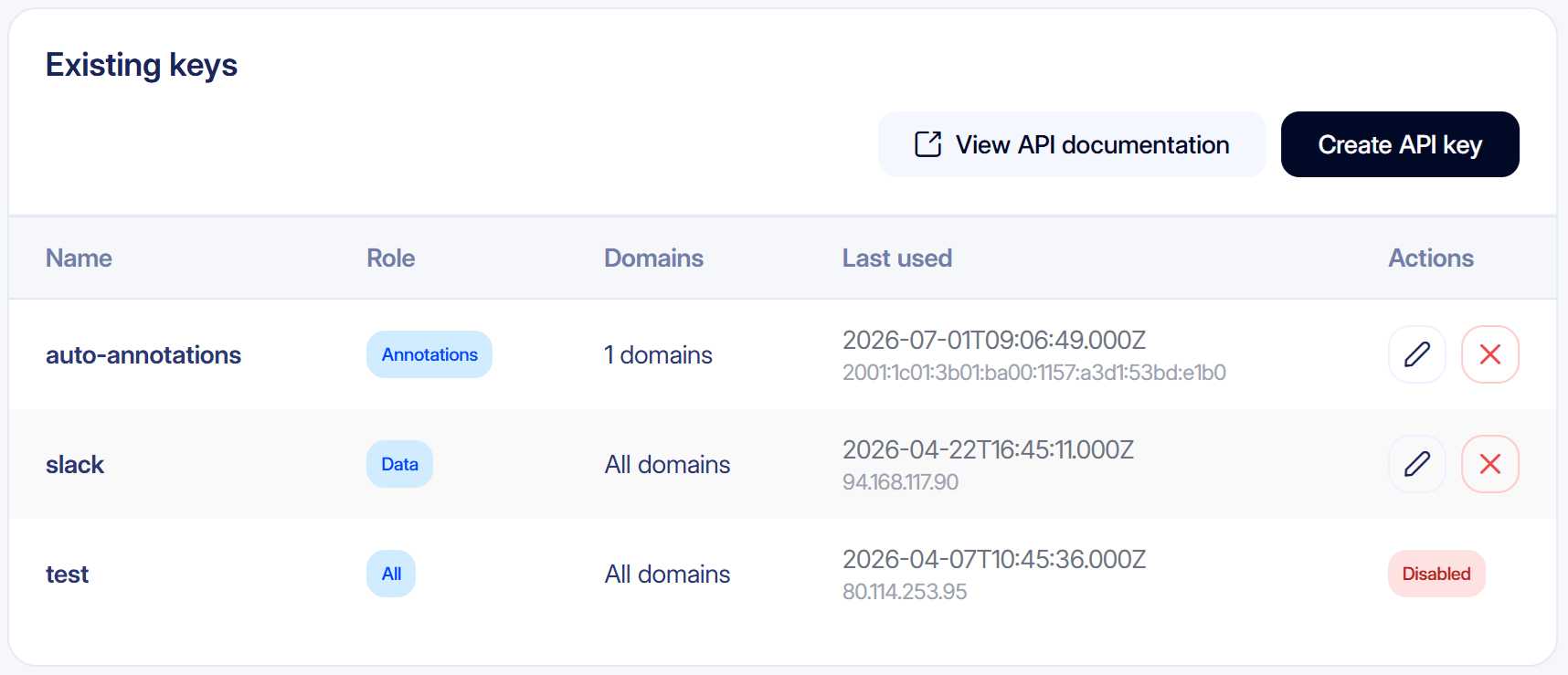
This makes it easier to identify which keys are still actively being used and what they have access to.
You can use the actions next to an API key to edit or remove it.
Disabling access
As soon as you revoke an active API key, it is disabled immediately and can no longer be used to access the API. Disabled API keys are clearly marked in the overview. Once an API key has been disabled, it cannot be reactivated.
API documentation
Detailed information about available endpoints, request parameters and responses is available in the RUMvision API documentation.
Click View API documentation from the API keys page to open it.
The API documentation is only available while you are logged in to RUMvision.
