Managing users
You can invite other people to your RUMvision organisation and control which domains they can access. There is no limit to the number of users you can invite or add to an organisation.
You can find Users at organisation level in the left sidebar.
Invite a user
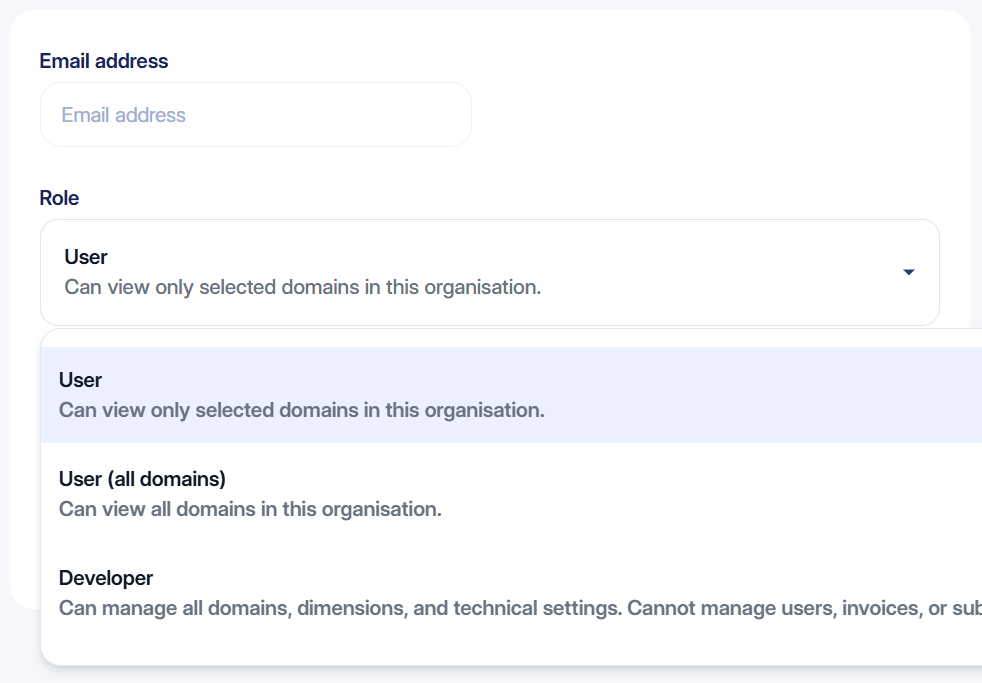
From the Users page, click Add user to invite someone to your organisation. A new page with form will show up:
Organisation access
Enter their email address and select an organisation role. The available roles and their permissions are explained directly in RUMvision, so you can choose the level of access that fits the user.
Once you send the invitation, the user receives an email with an invitation link.
Domain access
When assigning the regular User role at organisation level, you can choose which domains within your organisation they can access.
You can select one or multiple domains. For each selected domain, you can also assign a domain role.
This allows you to control access at two levels:
- The organisation role determines the user's access within the organisation.
- The domain role determines what the user can do within a specific domain.
The available roles and permissions are shown directly when adding or editing a user.
User listing
Pending invitations
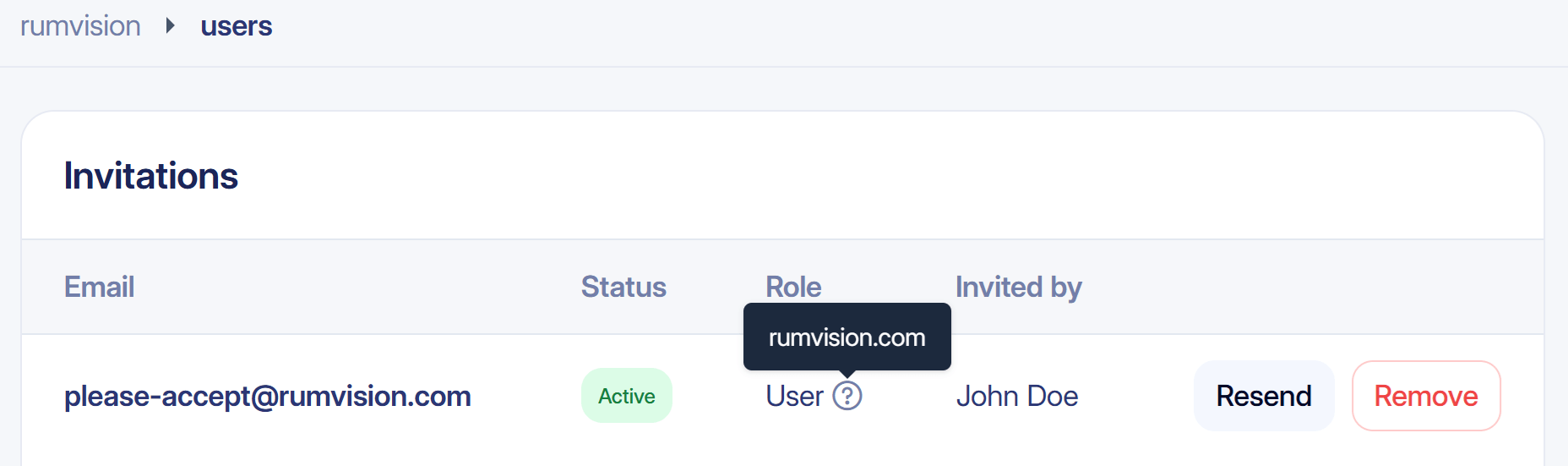
Until an invitation is accepted, it appears in the Invitations section at the top of the Users page.
For each pending invitation, you can:
- See which domains the user was invited to.
- Click Resend to send the invitation email again.
- Click Remove to revoke the invitation.
Expired & declined invites
Invitations are valid for 28 days. During this period, you can use Resend to send the invitation email again. Resending an invitation does not extend its expiry date.
If an invitation is declined or expires before it is accepted, it can no longer be used to join the organisation.
To invite the user again, create a new invitation using Add user and select the appropriate organisation role and domain access. The new invitation will be valid for another 28 days.
Active users
The Users page lists everyone who currently has access to your organisation.
Click on a user to view or update their access.
Manage an existing user
When managing an existing user, the same options that are available when inviting a user are shown here, but with the user's current settings already filled in.
You can update their organisation role, domain access and domain roles when needed.
Profile pictures
If a user's email address is associated with a Gravatar account, RUMvision automatically displays their Gravatar profile picture in various places throughout the application.
If no Gravatar is available, we will fall back to using the first character from your profile's Name input.
Remove users
Organisation admins can remove a user from the organisation from the user detail page.
At the bottom of the page, click Remove from organisation and confirm the action.
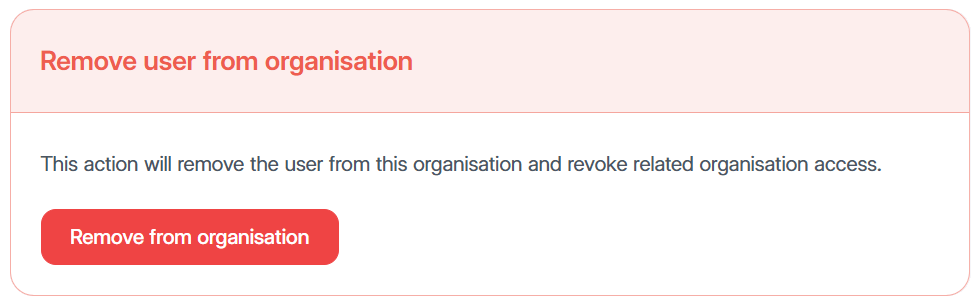
Removing someone from an organisation only removes their membership and access to that organisation. It does not delete their RUMvision user account. If the user is part of another organisation in RUMvision, they can continue using their account there.
